 Household money plan
Don't know how much you'll have left at year-end
Income and expenses are scattered across different places, making it hard to see the big picture.
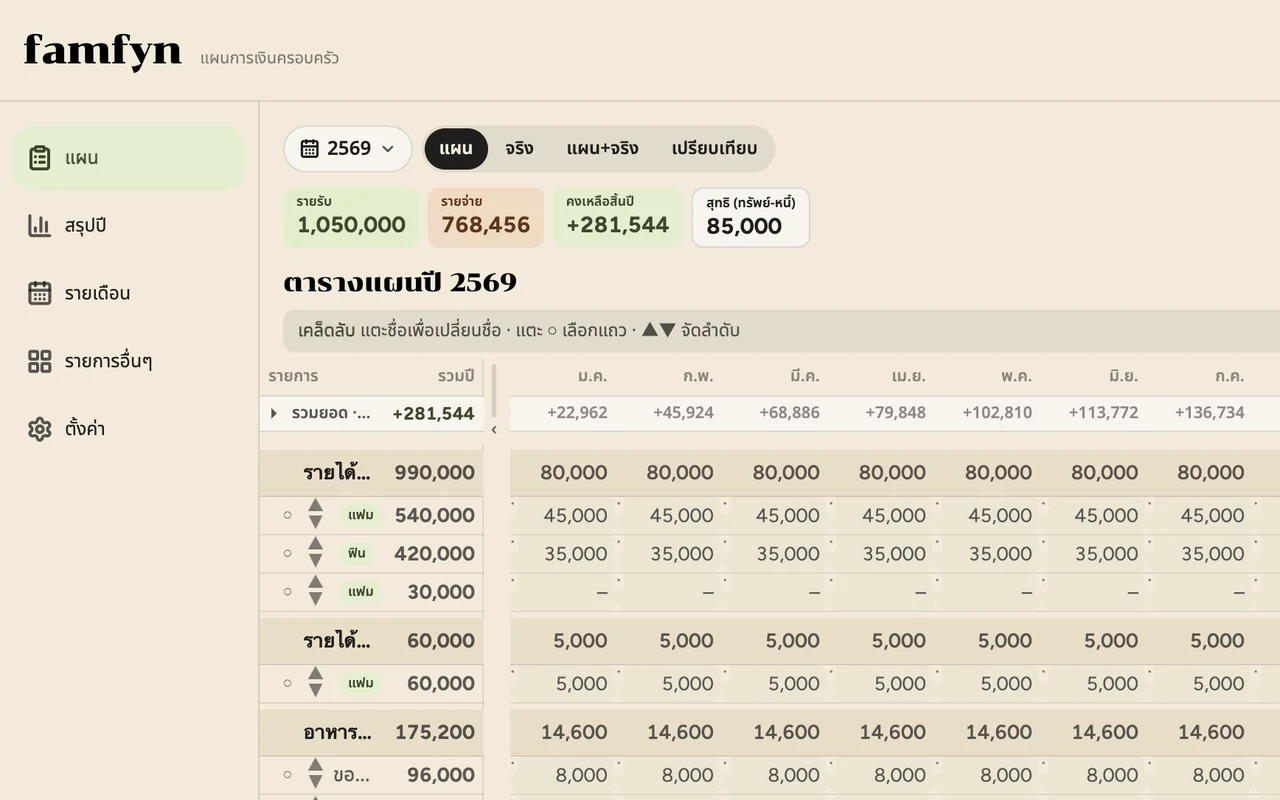
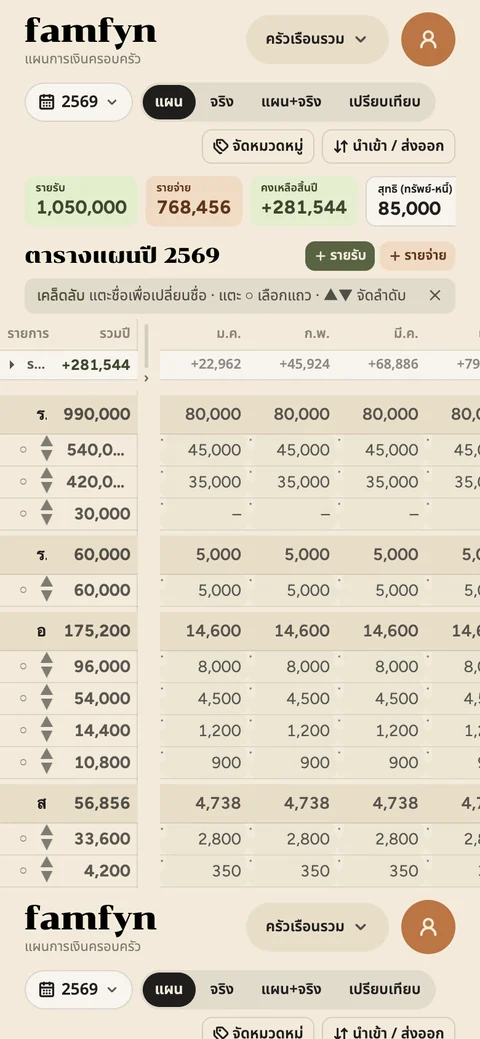
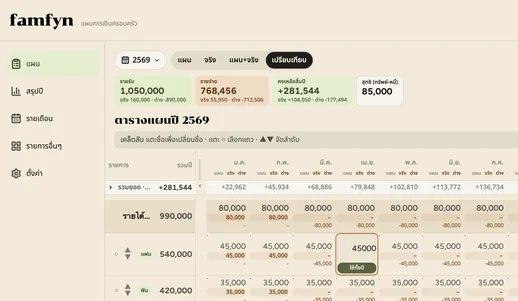
The full-year grid shows the balance for every month, plus the running total all the way to December.
Two logins, one household, one shared plan — see which months have surplus, which months are heavy, and carry leftover money forward to cover the next month. No more guessing from a year-end balance alone.
Demo lets you explore the app immediately — no sign-up needed, nothing sent to the server · You can install the app before creating an account
If your household has two incomes, shared expenses, and you want to know what the full year looks like ahead of time — famfyn was made for this.
Income and expenses are scattered across different places, making it hard to see the big picture.
The full-year grid shows the balance for every month, plus the running total all the way to December.
One person uses a notes app, the other uses a spreadsheet. Every money conversation means reconciling figures from scratch.
Two logins, one household — both people see and edit the exact same plan.
School fees, insurance premiums, vacations — infrequent, but costly when they arrive.
Enter amounts in the month they're actually due, then read the Running total row — surplus from lighter months helps carry you through the heavier ones.
The full-year grid does more than show a year-end balance — it shows the rhythm of cash in and out, like a household planner you actually use: spot the surplus months, then set money aside before insurance premiums or school fees cluster.
Enter income and expenses by their actual month, then watch the Running total row. If the year starts positive and dips negative mid-year, you need money from earlier months to cover it — move it into a real account to match the plan.
On the Year summary page, open Try a scenario and enable Spread lump premiums to simulate dividing by 12 — see how much smoother the cumulative graph becomes before you adjust the real plan.
Check the per-month average from the insurance page or the set-aside formula, then add a savings line only in months where the running total is still positive — skip extra savings in tight months. The app shows you which months have room; it does not transfer money automatically.
Try it in the demo or read more at Year-end positive but mid-year short (article currently in Thai)
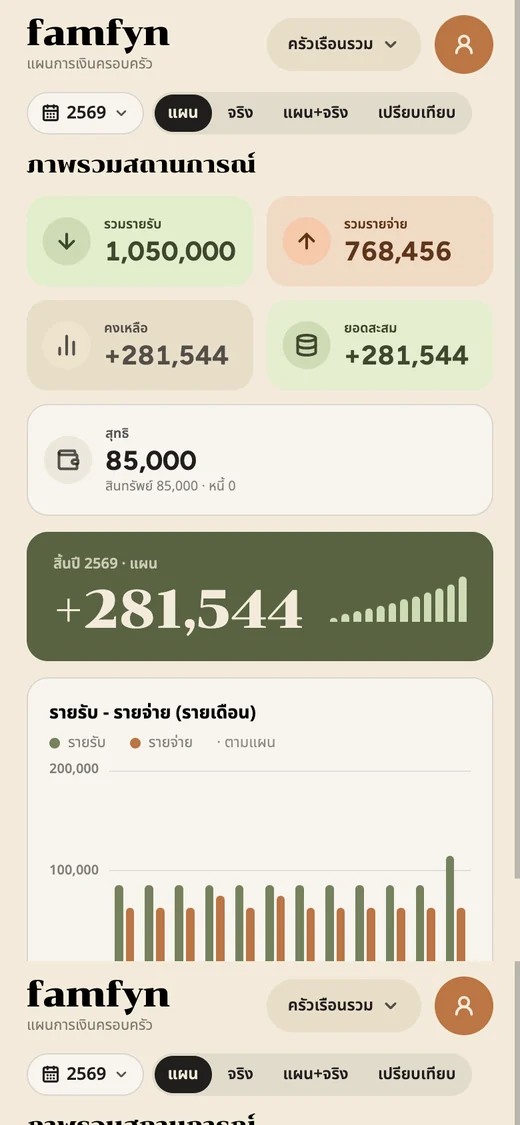
Every screenshot on this page is real — taken from the app using data from the sample household.
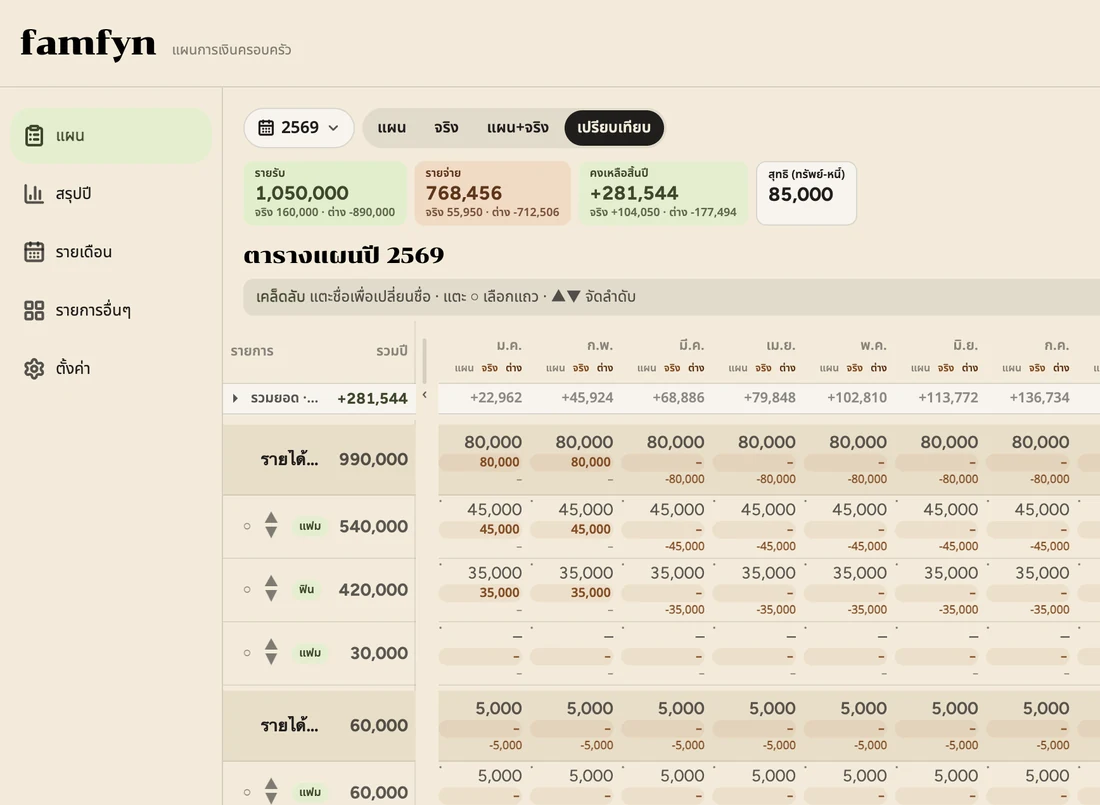
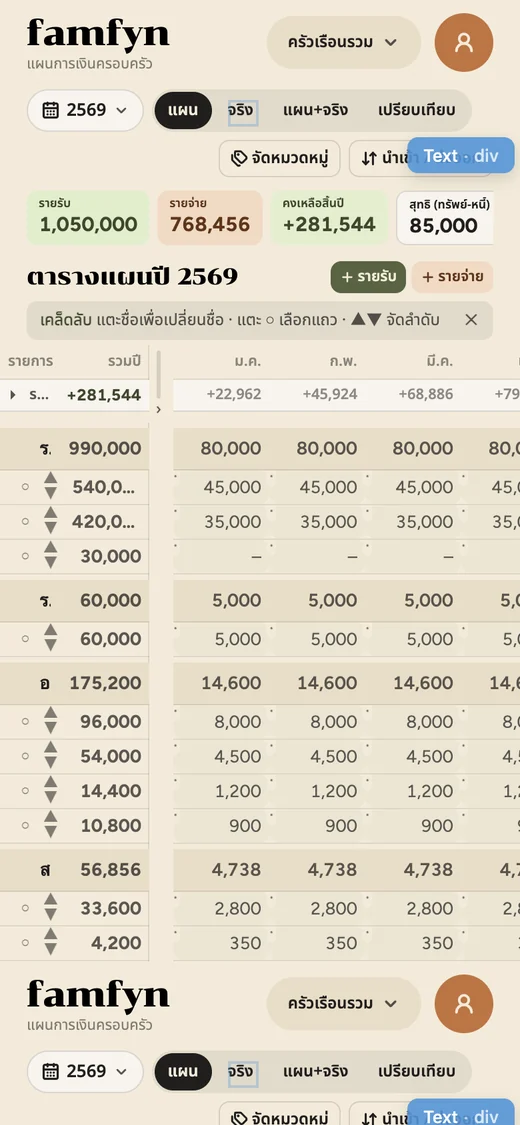
Every line item is a row; every month is a column, January through December. Enter amounts once and see the whole year.
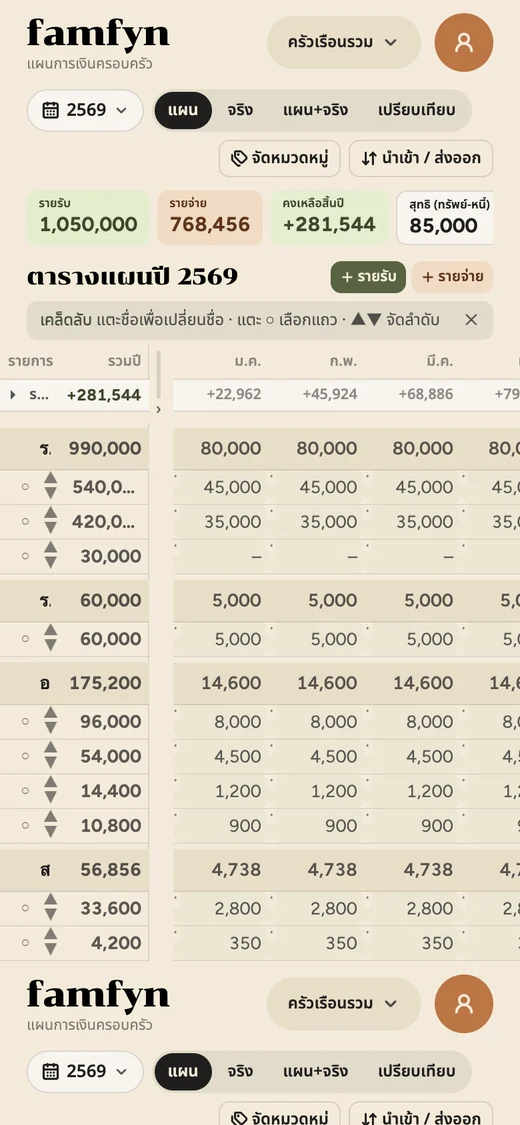
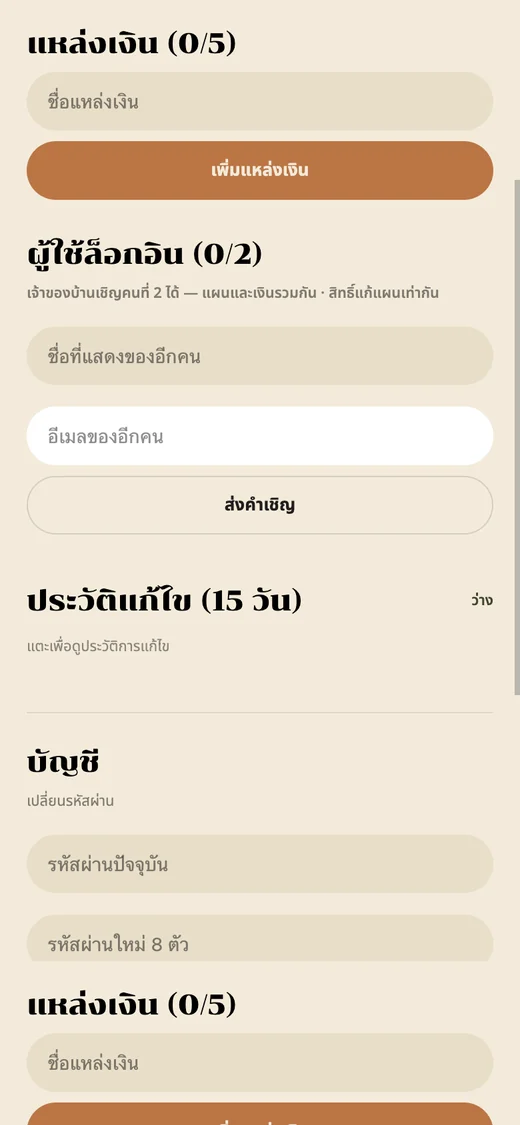
The household owner can invite one other person. Both have equal access to edit the plan.
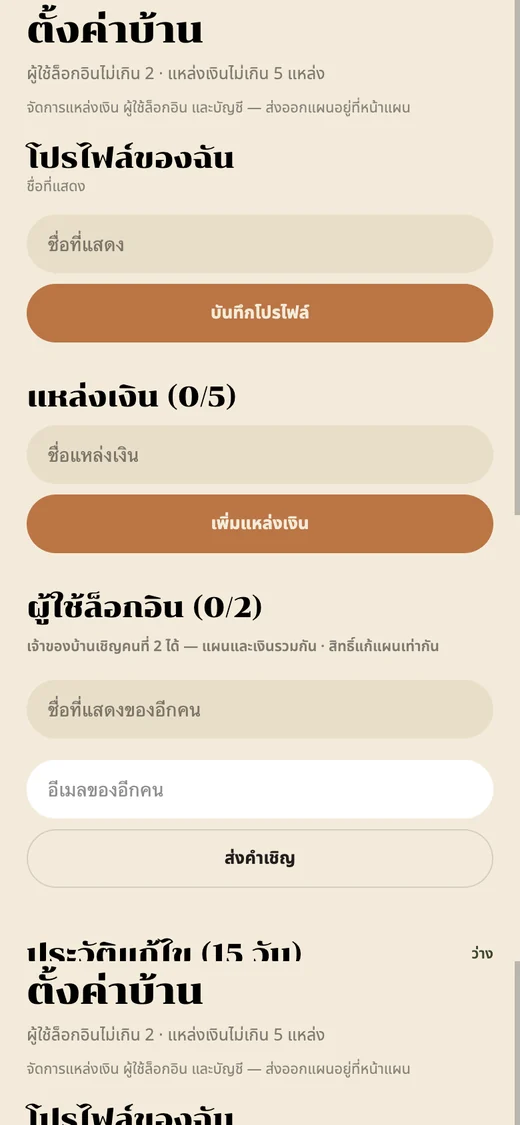
Hit the ground running with a starter library of 18 groups and 56 line items covering income, expenses, and savings.
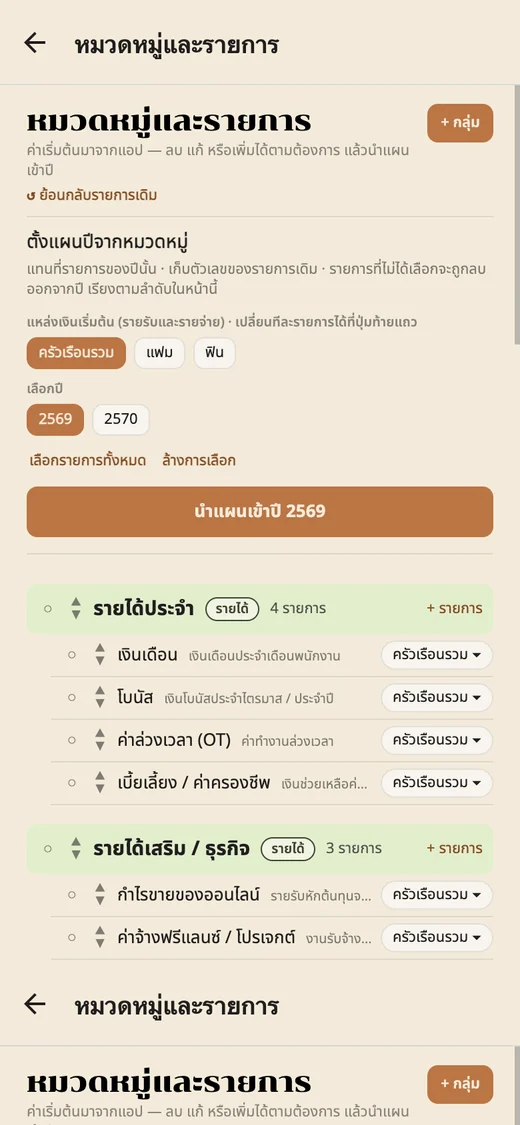
Set your plan, then record what actually happened in the same grid. Switch between 4 views:
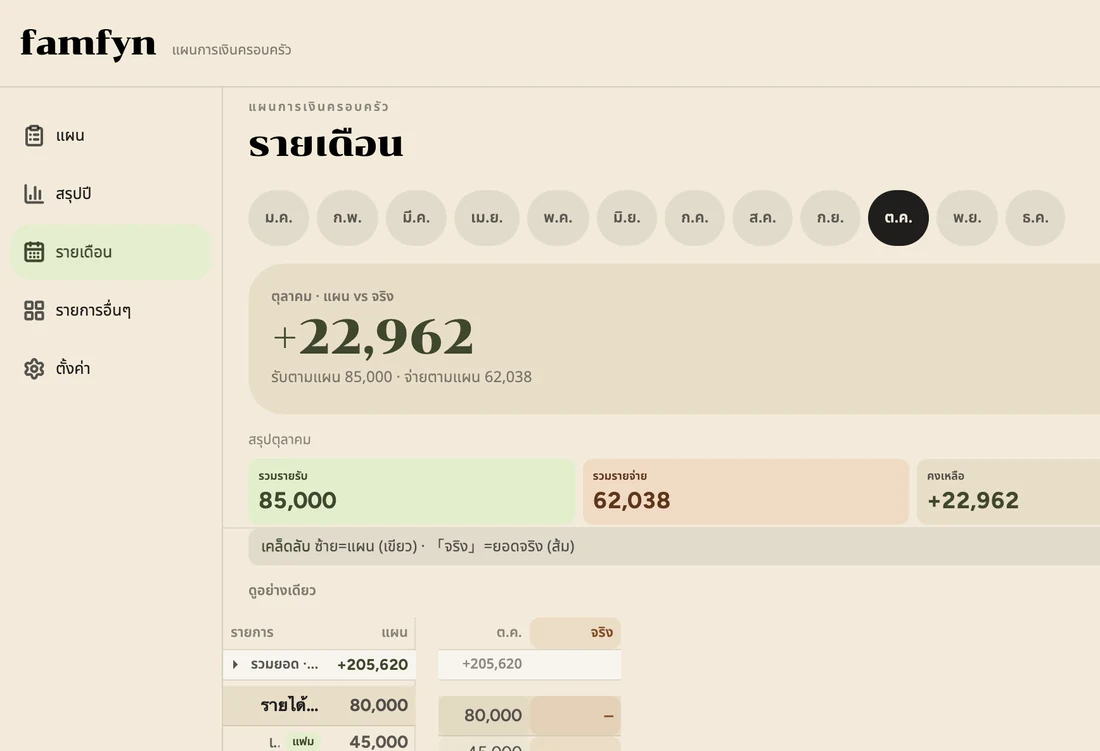
The Monthly tab lets you pick any month and see income, expenses, balance, and running total for that month alongside the actuals.
This tab is read-only. To change figures, edit them on the Plan page.
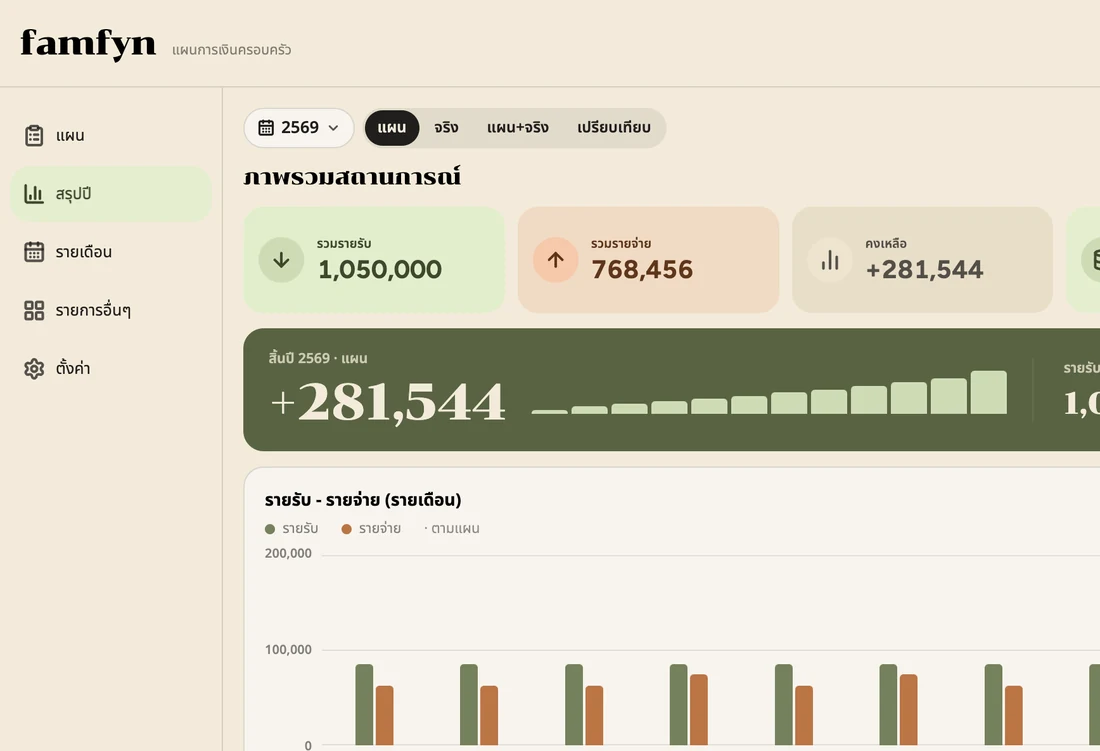
The Year summary page shows total income, expenses, balance, running total, and net worth, plus a monthly bar chart. The Try a scenario panel lets you shift a lump savings deposit or spread lump premiums across months — see which months would go negative before you commit to changing the real plan.
Already have a plan in a file? No retyping needed. Export your data at any time.
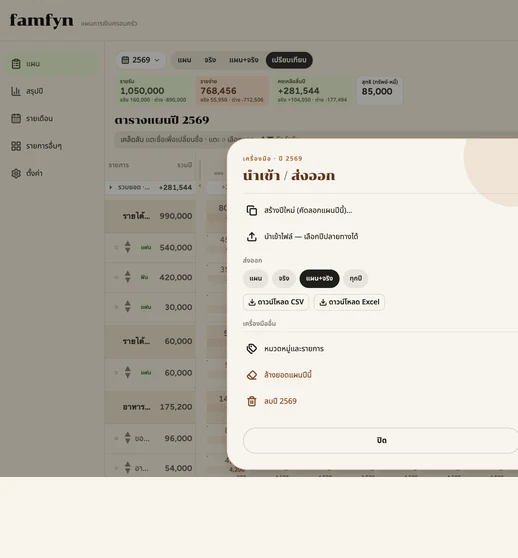
Track Savings / Assets with savings goals, Debts with balances and instalments, and Subscriptions for monthly or annual services. Asset minus debt totals appear in the Net field.
Copy this year's plan to a new year — line items, planned monthly amounts, and money sources all transfer. Actual amounts are not copied.
Open on mobile or desktop. The layout adapts to your screen size. Nothing extra to install.
Add a note to any individual month cell — e.g. why the electricity bill was unusually high this month. Everyone in the household sees the same notes.
Button names in the steps below match exactly what you see in the app.
Intro video with Thai on-screen text — plays automatically muted when scrolled into view. Unmute for background music.
Tap Create household, then fill in a household name (optional), your display name, email, and password. Tap Sign up.
Password must be exactly 8 characters and include both letters and numbers. Upper and lower case are treated as different characters. You must accept the Terms of Use and acknowledge the Privacy Policy before signing up.

Check your inbox for a 6-digit code from famfyn. Enter the code and tap Verify code.
The code is valid for 10 minutes. If it expires or you don't receive it, tap Resend code.

Already have a plan in a file? Tap Import / Export and choose Import file (add / update). The file must include Item, Type, and Group columns.
In Plan mode, tap a month cell and type the amount.
Need more items? Tap + Income or + Expense, then tap the item you want to add to the plan.
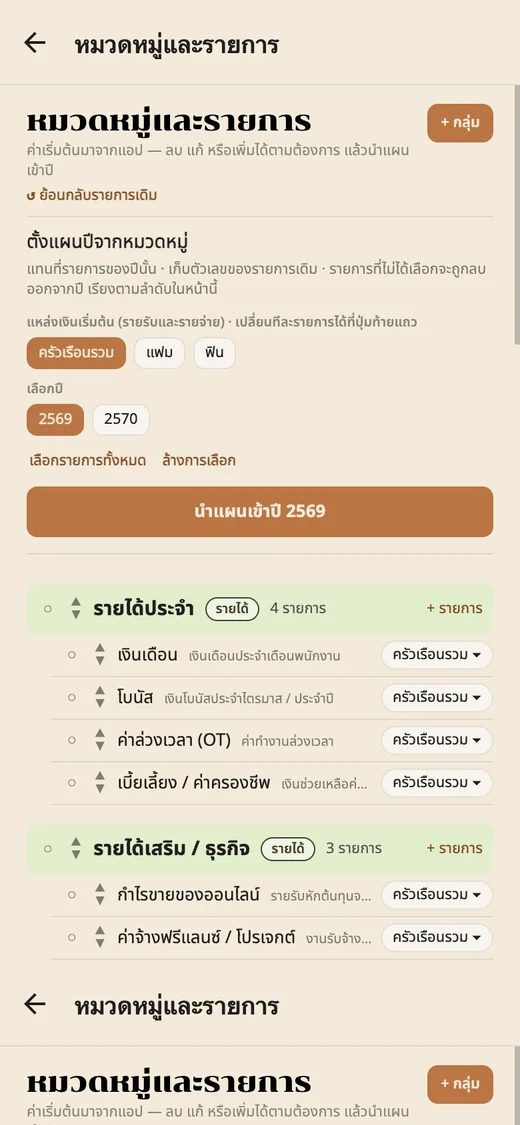
Tap ○ next to a row to select it, then tap Source and choose whose it is, or Household combined.
Tap ● again to deselect.
They'll receive an email invitation. They must open the link within 14 days, set an 8-character password (letters + numbers), accept the terms, and tap Set password & enter.
Only the household owner can send invitations.
On the Plan page, switch to Actual mode, then tap a month cell to enter what was actually paid or received.
Actual amounts can only be recorded on the Plan page. The Monthly tab is read-only.
Open the Year summary tab for a full-year overview, or switch to Compare mode on the Plan page to see which months went over budget.
The target year must not already have a plan. If it does, delete it first.
8 articles for couples and families — full-year planning, splitting expenses, big annual bills, emergency funds, and money conversations. Articles are currently in Thai. Read the full library at famfyn.com/learn
Combine both incomes and expenses into one picture — start the plan both people can use together.
Read articleCarry surplus forward, smooth out lump expenses, or save only in months where you have room.
Read articleCalculate how much to set aside each time, based on what you have and how long until the due date.
Read articleSplit equally, proportionally, or by item — choose the method you can both agree on.
Read articleCalculate from essential expenses, separate from school fees and other savings goals.
Read articleAll 8 articles in one place — read in sequence, download, or print the guide from your browser.
Go to /learnEnter your target, current savings, years until retirement, and an estimated return rate. The calculator estimates your required monthly contribution and shows a year-by-year compound growth table. This is a guide, not investment advice. · Don't know your target yet? Use the questionnaire based on expenses and inflation first.
You need to save approximately — THB / month
Principal + interest at maturity approx. — THB · Interest earned approx. — THB
| Year | Cumulative saved | Total (compounded) |
|---|
Assumes end-of-month contributions with simple monthly compounding — set a real goal in the app under Savings / Assets after creating a household or trying the demo
Tackle household money one topic at a time — read the short guide, then try the calculator or open the demo.
Combine all income and expenses into one annual view — see surplus months and months that need preparation.
Pick a small, sustainable goal, transfer on payday, and keep your emergency fund separate from your holiday fund.
List instalments, interest, and risk level, then put them in the annual plan without double-counting.
Food, school fees, miscellaneous — be clear which pot is for what.
Think in terms of living costs, inflation, and the number of years — not a single round number from the internet.
Estimate your retirement target and find out whether you lean toward frugal or free-spending — no data sent to the server.
Always check both Monthly balance and Running total — a positive year-end figure can still hide negative months in the middle.
Password must be exactly 8 characters with both letters and numbers. Upper and lower case are treated differently.
Tap a row name in the grid to rename it.
Tap ○ to select a row, then change its source, Clear amounts, or Delete row.
Tap the small dot in the corner of a cell to add a note for that month.
On the Categories page, tap ↺ Restore default items to reset the starter library — existing year plans are not affected.
Data is stored in Cloudflare's cloud infrastructure (Cloudflare Workers and D1), which may be located in data centres outside Thailand.
Your browser also keeps a local copy of your plan and login session to load the app quickly. When you log out, the local plan copy and session data are cleared. Full details are in the Privacy Policy.
Only people logged in to the same household can see and edit the plan (up to 2 users).
famfyn admins have a management page that shows household names, display names, emails, and account status — it does not display plan figures. However, admins with direct database access can technically read all stored data. We access your data only when you ask us to help resolve an issue, when investigating a security incident, or when required by law.
Yes. On the Plan page, tap Import / Export, choose Plan, Actual, Plan + actual, or all years, then tap Download CSV or Download Excel.
Yes. Go to Settings → Danger zone, tap Delete account, then type your email to confirm. All devices are signed out immediately and you'll receive an email confirming the deletion date.
Permanent deletion happens after 7 days. You can change your mind during this period by logging in and tapping Cancel deletion. If you're the last user in the household, all household data is deleted too. If another member remains, the household plan stays with them. After permanent deletion you can re-register with the same email.
On the login page, tap Forgot password?, enter the email you signed up with, then enter the 6-digit code sent to your inbox (valid 10 minutes) and set a new 8-character password with both letters and numbers. The app signs you in automatically; other devices that were logged in will need to sign in again.
If you're still logged in, you can change your password in Settings → Account. If you don't receive the email, check spam or contact hello@famfyn.com.
Up to 2 logins per household, with up to 5 money sources. Sources without their own login can still be used to separate amounts — for example, a child's money.
Tap Try demo to explore the app's screens and menus right now. The demo runs entirely in your browser, sends nothing to the server, and is not a real account.
A real account requires an internet connection because data is stored on the server so both people stay in sync.
famfyn is a web app that works in any current browser on mobile or desktop. Tap Download app on the homepage to add an icon to your home screen, or download a file when a link is provided by the team.
If you encounter a display problem, let us know at hello@famfyn.com.
Buddhist Era (B.E.) — for example 2569. This applies to the year selector, the plan grid, and exported files.
No, and no. famfyn is a planning tool. It does not connect to any bank account, does not transfer money, and never asks for your banking credentials. All figures come from what you type in or import from a file.
Enter large lump expenses in the month they're actually due, then read the Running total row. If a previous month is positive and a later month is negative, you need reserve money from earlier months to cover it — you transfer that money into a real account yourself, following the plan.
To simulate spreading a lump premium into equal monthly amounts, open Year summary → Try a scenario → Spread lump premiums. Saving only in months where you have room (skipping tight months) is a decision you make based on the cumulative graph. The app does not move money automatically.
Send a message on the right, or reach us on LINE / email directly — we read everything.
You can install the icon on your phone before creating an account — open it via the browser, or download a file when a link is provided by the team.